Deploy a Vision Agent to any Kubernetes cluster using the official Helm chart. This guide walks you through every step — from building a container image to seeing live metrics in Grafana.

What you’ll set up

  • Agent running on Kubernetes with health checks
  • Redis for session storage (bundled in the chart)
  • Prometheus metrics scraping
  • Grafana dashboard with live panels (sessions, latency, tokens)

Prerequisites

ToolInstall
Dockerdocker.com
kubectlkubernetes.io
Helmbrew install helm or helm.sh
A Kubernetes clusterAny: GKE, EKS, AKS, Minikube, OrbStack, Docker Desktop
You’ll also need API keys for the AI services:
STREAM_API_KEY=...
STREAM_API_SECRET=...
DEEPGRAM_API_KEY=...
ELEVENLABS_API_KEY=...
GOOGLE_API_KEY=...

Step 1: Get the example

Clone the repository and navigate to the deploy example:
git clone https://github.com/GetStream/vision-agents.git
cd vision-agents/examples/07_k8s_deploy_example

Step 2: Create your .env file

cp .env.example .env
Edit .env and fill in your API keys.

Step 3: Build the Docker image

Generate the lock file and build:
uv lock
docker build -t vision-agent-deploy:latest -f Dockerfile .
If you’re deploying to a cloud cluster (not local), you’ll need to push the image to a container registry:
docker tag vision-agent-deploy:latest YOUR_REGISTRY/vision-agent-deploy:latest
docker push YOUR_REGISTRY/vision-agent-deploy:latest
Then set image.repository in Step 5 accordingly.

Step 4: Build Helm dependencies

The chart includes Redis as an optional bundled dependency:
helm dependency build ./helm

Step 5: Install

helm install my-agent ./helm \
  --set metrics.enabled=false \
  --set grafana.enabled=false \
  --set secrets.streamApiKey="$(grep '^STREAM_API_KEY=' .env | cut -d= -f2)" \
  --set secrets.streamApiSecret="$(grep '^STREAM_API_SECRET=' .env | cut -d= -f2)" \
  --set secrets.deepgramApiKey="$(grep '^DEEPGRAM_API_KEY=' .env | cut -d= -f2)" \
  --set secrets.elevenlabsApiKey="$(grep '^ELEVENLABS_API_KEY=' .env | cut -d= -f2)" \
  --set secrets.googleApiKey="$(grep '^GOOGLE_API_KEY=' .env | cut -d= -f2)"
We disable metrics and grafana for now because they require Prometheus CRDs (ServiceMonitor). We’ll enable them in Step 8.
This deploys:
  • Agent — Deployment with health probes, resource limits, and your API keys
  • Redis — Standalone instance for session storage
  • Service — ClusterIP for internal routing
  • Ingress — External access (disabled by default, enable with ingress.enabled=true and set ingress.host)

Step 6: Verify

Wait for pods to be ready:
kubectl get pods -w
You should see two pods reach 1/1 Running:
my-agent-redis-master-0                  1/1     Running   0          30s
my-agent-vision-agent-xxxxx-xxxxx        1/1     Running   1          35s
The agent pod may restart once on first deploy. This happens because the agent tries to connect to Redis at startup, but Redis isn’t ready yet. After the restart, Redis is up and everything works normally.

Test the health endpoint

kubectl port-forward svc/my-agent-vision-agent 8080:8080
In another terminal:
curl -s -w "\nHTTP %{http_code}\n" http://localhost:8080/health
Expected: HTTP 200

Create a session

curl -s -X POST http://localhost:8080/calls/test-1/sessions \
  -H "Content-Type: application/json" \
  -d '{"call_type":"default"}' | python3 -m json.tool
Expected:
{
    "session_id": "...",
    "call_id": "test-1",
    "session_started_at": "..."
}

Step 7: Verify Redis

Check that the session was stored in Redis:
REDIS_PASSWORD=$(kubectl get secret my-agent-redis -o jsonpath='{.data.redis-password}' | base64 -d) kubectl exec my-agent-redis-master-0 -- redis-cli -a "$REDIS_PASSWORD" KEYS '*'
Expected output:
vision_agents:sessions/test-1/<session-id>

Step 8: Monitoring (Prometheus + Grafana)

Install the monitoring stack

This installs Prometheus + Grafana with CRDs for ServiceMonitor:
helm repo add prometheus-community https://prometheus-community.github.io/helm-charts
helm install monitoring prometheus-community/kube-prometheus-stack \
  --set grafana.adminPassword=admin \
  --set prometheus.prometheusSpec.retention=2h \
  --set alertmanager.enabled=false

Enable metrics in the agent chart

Now upgrade with metrics and Grafana dashboard enabled:
helm upgrade my-agent ./helm \
  --set metrics.additionalLabels.release=monitoring \
  --set secrets.streamApiKey="$(grep '^STREAM_API_KEY=' .env | cut -d= -f2)" \
  --set secrets.streamApiSecret="$(grep '^STREAM_API_SECRET=' .env | cut -d= -f2)" \
  --set secrets.deepgramApiKey="$(grep '^DEEPGRAM_API_KEY=' .env | cut -d= -f2)" \
  --set secrets.elevenlabsApiKey="$(grep '^ELEVENLABS_API_KEY=' .env | cut -d= -f2)" \
  --set secrets.googleApiKey="$(grep '^GOOGLE_API_KEY=' .env | cut -d= -f2)"
metrics.additionalLabels.release=monitoring is required so Prometheus discovers the ServiceMonitor. The label must match your Prometheus serviceMonitorSelector — for kube-prometheus-stack, it’s release: <release-name>.
This adds:
  • ServiceMonitor — tells Prometheus to scrape /metrics on the agent pods
  • Grafana Dashboard — auto-provisioned via ConfigMap sidecar

Open Grafana

kubectl port-forward svc/monitoring-grafana 3000:80
If you see pod is not running. Current status=Pending, wait a moment for the Grafana pod to start and retry. The monitoring stack takes a bit longer to initialize than the agent.
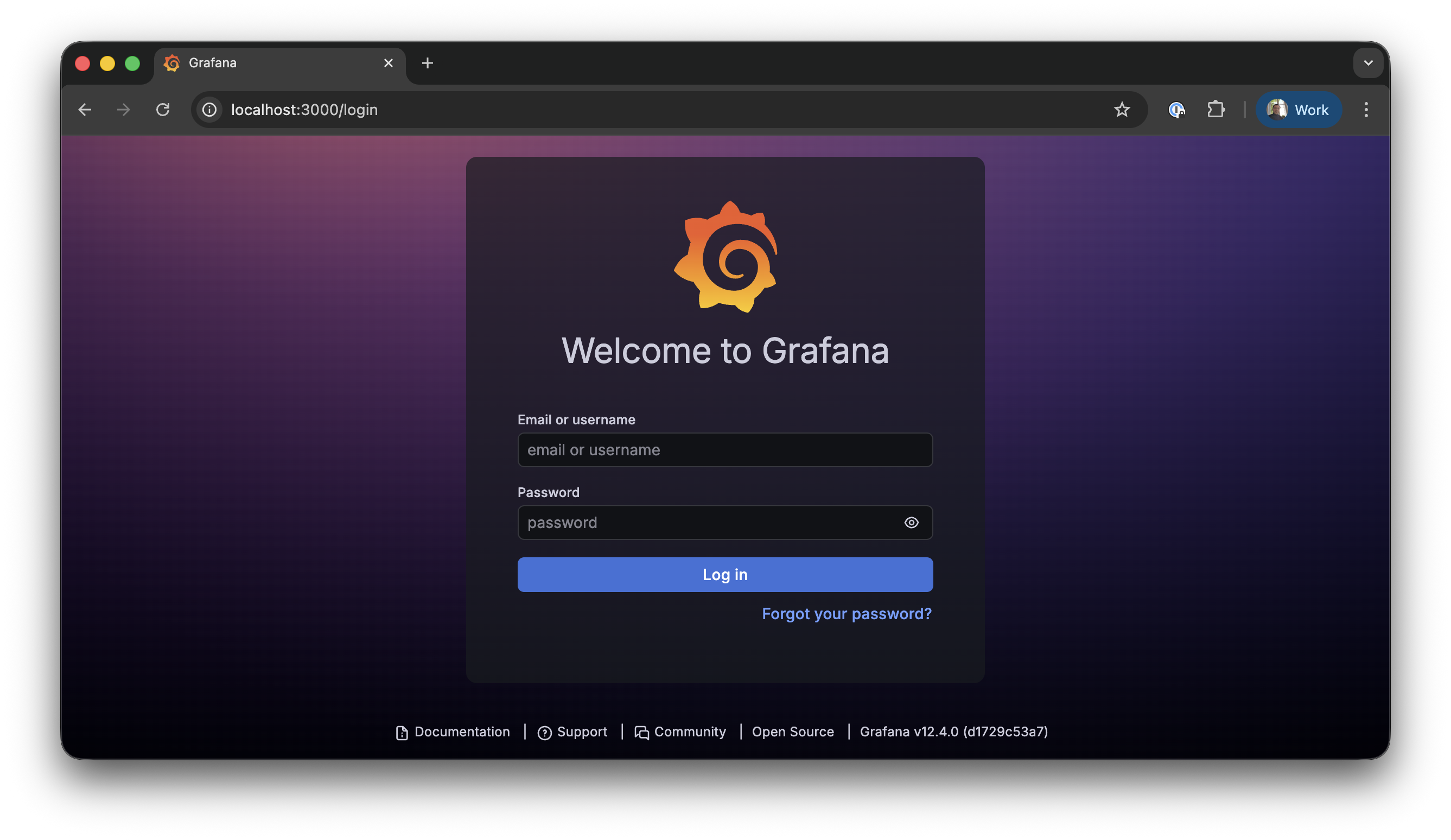
Open http://localhost:3000 — you’ll see the Grafana login screen. Enter admin / admin.
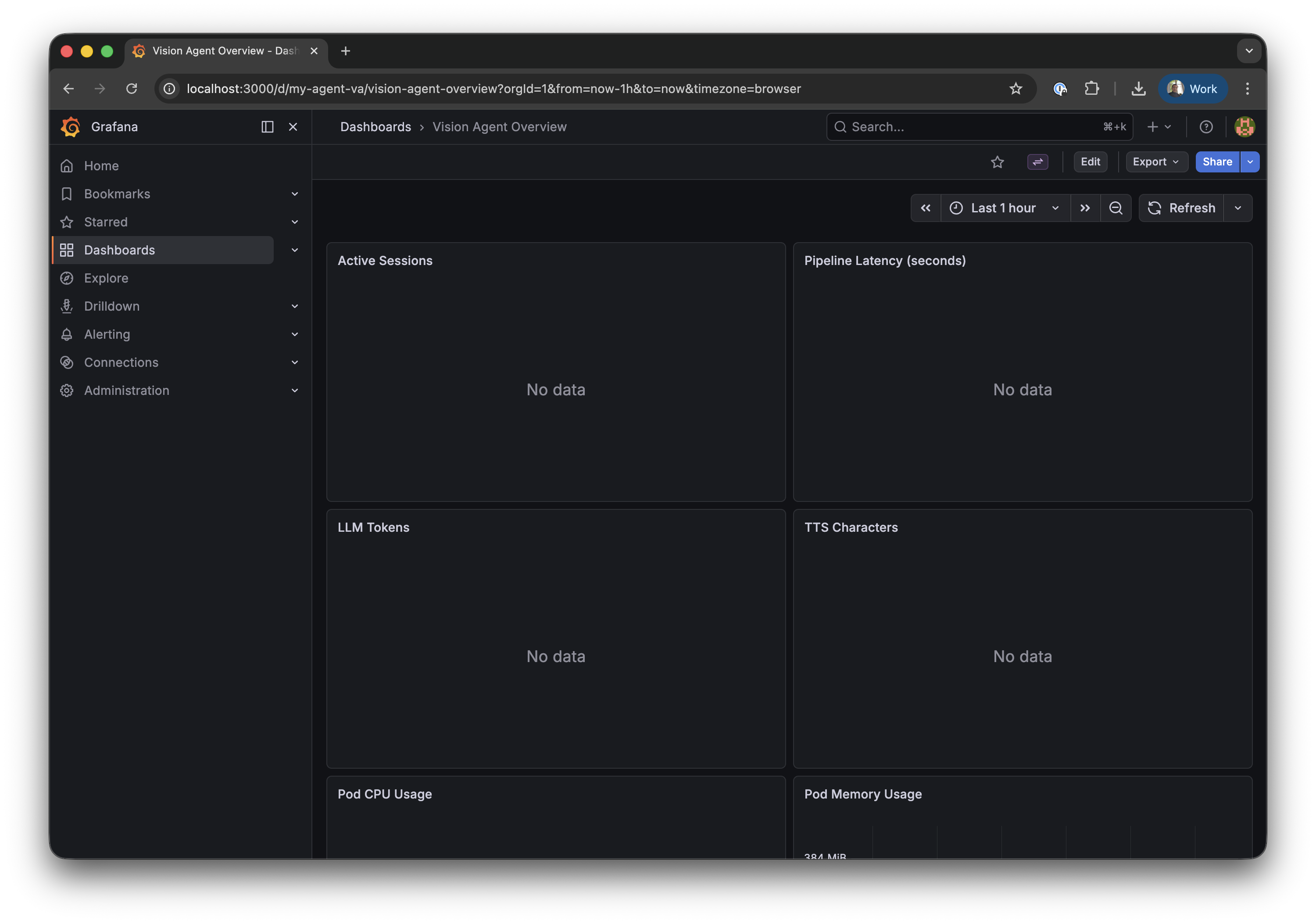
Navigate to Dashboards → Vision Agent Overview.
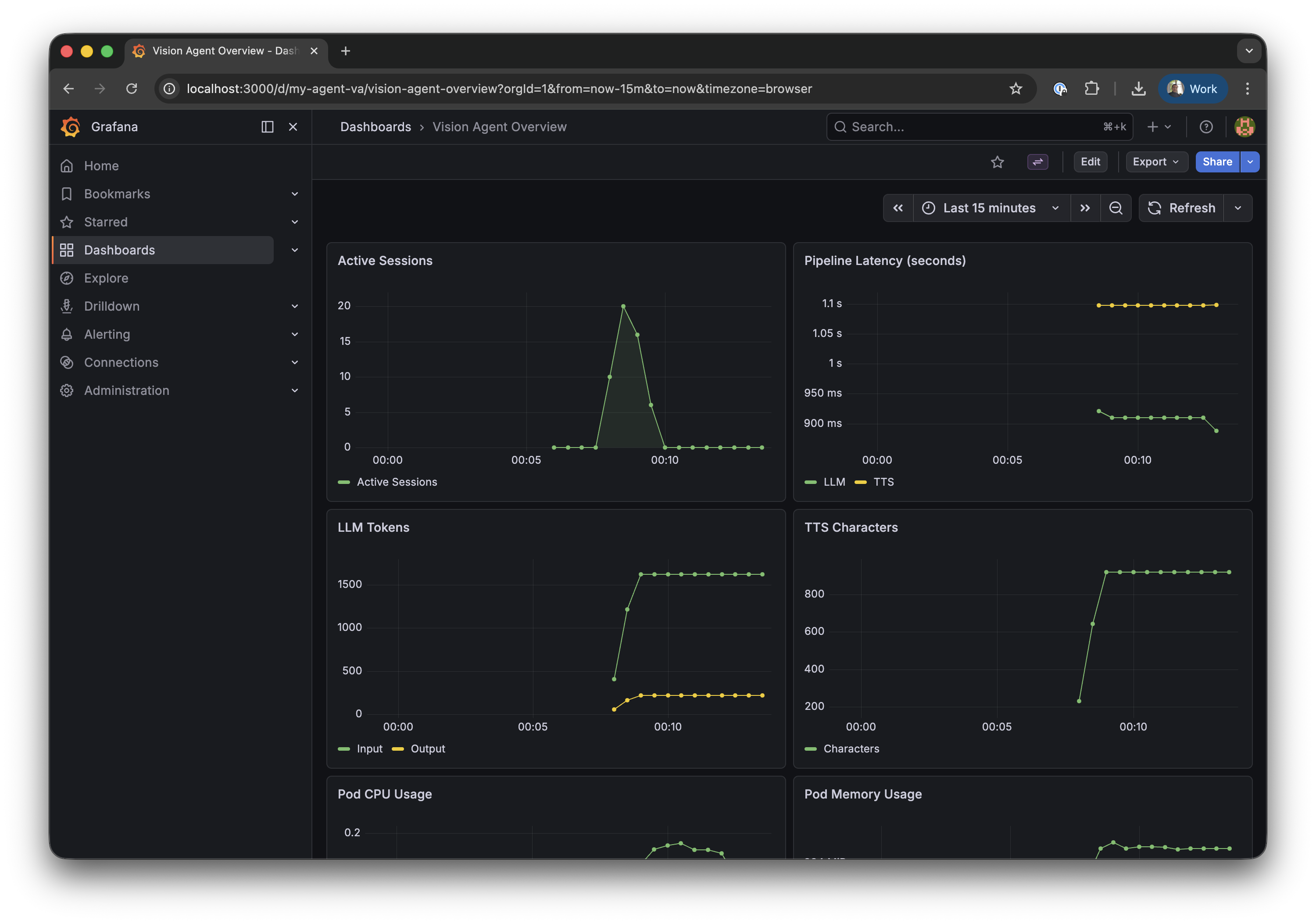
You’ll see 7 panels:
RowLeftRight
1Active SessionsPipeline Latency (STT / LLM / TTS)
2LLM Tokens (input / output)TTS Characters
3Pod CPU Usage (not visible on screenshot)Pod Memory Usage (not visible on screenshot)
4LLM Time to First Token (not visible on screenshot)

Generate some data

Create test sessions to verify the metrics pipeline works end-to-end. The 3-second delay between sessions ensures Prometheus captures active session counts between its 30-second scrape intervals:
for i in $(seq 1 20); do
  curl -s -X POST http://localhost:8080/calls/load-test-$i/sessions \
    -H "Content-Type: application/json" \
    -d '{"call_type":"default"}'
  sleep 3
done
The Pod CPU Usage and Pod Memory Usage panels will show data immediately since they use cluster-level metrics. The application-level panels (Active Sessions, Latency, Tokens) will populate as sessions run through the pipeline.
For sustained, non-zero application metrics, connect a real client via the Stream Video SDK. Test sessions created via curl are short-lived and may complete between Prometheus scrape intervals (30s).
Configuration reference

values.yaml — key settings

SettingDefaultDescription
replicaCount1Number of agent pods
image.repositoryvision-agent-deployContainer image
image.taglatestImage tag
containerPort8080Application port
redis.deploy.enabledtrueDeploy Redis alongside the agent
redis.auth.enabledtrueEnable Redis authentication (bundled Redis)
redis.url""External Redis URL (when deploy.enabled=false)
ingress.enabledfalseCreate an Ingress resource (requires host to be set)
ingress.className""Ingress class (nginx, traefik, etc.)
ingress.host""Domain name
metrics.enabledtrueCreate ServiceMonitor for Prometheus
metrics.additionalLabels{}Extra labels on ServiceMonitor
grafana.enabledtrueDeploy Grafana dashboard ConfigMap
gpu.enabledfalseSwitch to GPU resources and tolerations
cache.enabledtruePersistent volume for uv package cache
secrets.existingSecret""Use a pre-created Secret instead

Using managed Redis (production)

For production, use a managed Redis service instead of the bundled one:
helm install my-agent ./helm \
  --set redis.deploy.enabled=false \
  --set redis.url="rediss://:AUTH@your-redis-host:6380/0" \
  --set secrets.existingSecret=my-api-keys

Using a custom domain

helm install my-agent ./helm \
  --set ingress.className=nginx \
  --set ingress.host=agent.example.com \
  --set ingress.tls[0].secretName=agent-tls \
  --set ingress.tls[0].hosts[0]=agent.example.com

Troubleshooting

Pod crashes immediately — uv.lock not found

You need to generate the lock file before building:
uv lock
docker build -t vision-agent-deploy:latest -f Dockerfile .

Server listens on 127.0.0.1 — probes fail

The Dockerfile must use --host 0.0.0.0:
CMD ["sh", "-c", "uv sync --frozen && exec uv run deploy_example.py serve --host 0.0.0.0 --port 8080"]
Without --host 0.0.0.0, the server only accepts connections from inside the container, and Kubernetes health probes can’t reach it.

ServiceMonitor exists but Prometheus doesn’t scrape

Prometheus only watches ServiceMonitors with matching labels. Check what your Prometheus expects:
kubectl get prometheus -o jsonpath='{.items[0].spec.serviceMonitorSelector}'
Then add the required label:
helm upgrade my-agent ./helm \
  --set metrics.additionalLabels.release=monitoring

Grafana dashboard shows “No data”

  1. Check Prometheus is scraping: open http://localhost:9090/targets (port-forward Prometheus first)
  2. Check the metric exists: in Grafana Explore, query ai_demo_active_sessions
  3. If data shows in Explore but not the dashboard — restart Grafana to reload ConfigMaps:
kubectl delete pod -l app.kubernetes.io/name=grafana

Cleanup

Remove everything:
helm uninstall my-agent
helm uninstall monitoring
kubectl delete pvc --all

Next steps